Sign in to the mpathic Platform
Last updated: May 7, 2026
Your Administrator will have setup your account which triggers a Welcome email and Reset Password email. The mpathic Platform is secured by Multi-Factor Authentication (MFA) and that will need to be setup before you can login. See 📄 Multi-factor Authentication Overview for why we use Multi-Factor Authentication.
Download an authenticator
You will need your phone before you Login
If you do not already have an authenticator, please download one of the following:
Google Authenticator (Google Play / App Store)
Microsoft Authenticator (Google Play / App Store)
Reset your password
Open the Reset Password email and Click the Change Password button.
Follow the instructions to set your password.
Log in
Open the Welcome email and follow the URL to the mpathic Platform.
Click the Login button either in the middle of the screen or the top right.
Enter your username and password
You will see a screen similar to:
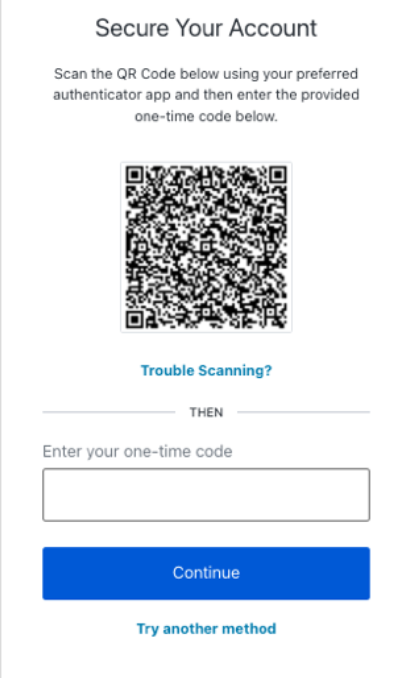
As it mentions on screen, open your Authenticator app that you downloaded. There will be a '+' somewhere in the app to add a new account. Click that and select QR Code if prompted. Scan the QR code using your phone inside the Authenticator app.
You will see something similar to this on your phone:
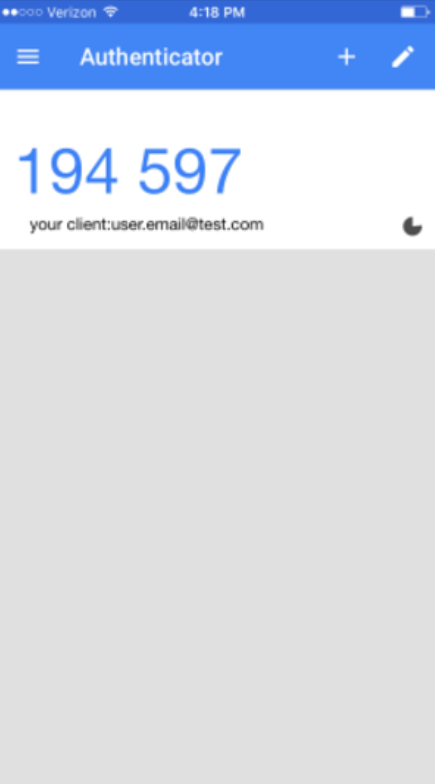
Enter the first code into the box as requested in the -THEN- section in the first screenshot and click Continue.
Every time you login you will be prompted for your password followed by your code from your authenticator app.
Authentication codes change frequently (you can see in the example above it has a pie symbol that is counting down) and previous codes will not work once they change.
Having issues logging in? Check out these common questions:
📄 My Reset Password link is expired, what do I do?